How A Browser Works
What a browser actually is ? (beyond “it opens websites”)
A browser is not just something that “opens websites.”
It is a complex software platform that sits between you and the internet, acting as an interpreter, security guard, and application runtime all at once.
Let’s break it down clearly, layer by layer.
1. At its core: a browser is a client
The browser is a client program that:
Requests data from servers (using HTTP/HTTPS)
Receives responses (HTML, CSS, JavaScript, images, videos)
Decides how to process and display that data
It does not “load a website.”
It constructs one from raw resources.
2. The browser is a networking engine
Before anything appears on screen, the browser:
Converts a URL into an IP address (DNS lookup)
Opens a TCP connection (or QUIC for HTTP/3)
Encrypts communication (TLS for HTTPS)
Sends an HTTP request
Receives the response in packets
➡️ All of this happens before you see even a single pixel.
3. The browser is a document parser
Once data arrives, the browser doesn’t just “show” it.
It parses it:
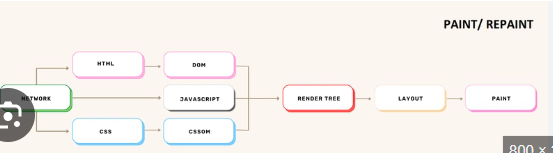
HTML → DOM
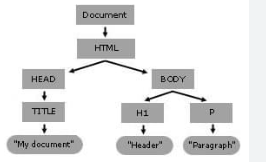
HTML is converted into a DOM tree (Document Object Model)
Each tag becomes a node in memory
CSS → CSSOM
CSS is parsed into a CSS Object Model
Determines styles, layout rules, inheritance
DOM + CSSOM → Render Tree
Invisible elements are removed
Only visual elements remain
4. The browser is a layout and rendering engine
Now the browser calculates:
Element sizes
Positions
Fonts
Colors
Z-index stacking
This process is called:
Layout (reflow) – deciding where things go
Painting – drawing pixels
Compositing – combining layers efficiently (often using GPU)
That’s how a page visually appears.
5. The browser is a JavaScript runtime
A browser is also an execution environment:
Runs JavaScript using engines like:
V8 (Chrome, Edge)
SpiderMonkey (Firefox)
JavaScriptCore (Safari)
JavaScript can:
Modify the DOM
Handle clicks and keyboard input
Make network requests (fetch, AJAX)
Store data (cookies, localStorage)
➡️ This turns websites into applications, not just documents.
6. The browser is a security sandbox
Browsers are designed assuming websites are untrusted.
They enforce:
Same-Origin Policy
Sandboxing
Permission systems (camera, mic, location)
CORS rules
Content Security Policy (CSP)
Without these, opening a website could:
Read your files
Spy on other tabs
Steal passwords
The browser prevents that.
7. The browser is a process manager
Modern browsers don’t run everything in one process.
They isolate:
Tabs
Extensions
Rendering engines
This gives:
Better performance
Crash isolation
Stronger security
One tab crashes → browser stays alive.
8. The browser is an operating system for the web
This is the big idea.
A browser provides:
APIs (storage, graphics, networking)
Scheduling
Memory management
Permissions
Execution environments
In many ways:
The browser is the OS, and websites are the apps.
That’s why you can:
Edit documents
Play games
Run IDEs
Video call
Use cloud tools
—all inside a browser.
9. What a browser is NOT
❌ Not the internet
❌ Not a website
❌ Not just a UI program
It is a platform that:
Translates raw internet data into secure, interactive experiences.
Main parts of a browser (high-level overview
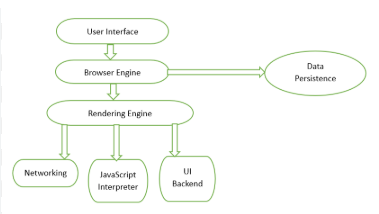
A web browser has a User Interface (address bar, buttons, tabs), a Browser Engine (connects UI to rendering), a Rendering Engine (displays HTML/CSS), a Networking module (handles requests), a JavaScript Interpreter (runs scripts), and a Data Persistence layer (stores data). Key user-facing parts include the Address Bar, Navigation Buttons (Back, Forward, Refresh), Tabs, Bookmarks, and History.
Core Components (Behind the Scenes)
User Interface (UI): The visual parts you interact with (address bar, buttons, menus).
Browser Engine: Acts as a mediator between the UI and the rendering engine, processing user input.
Rendering Engine (Layout Engine): Parses HTML/CSS and renders the page content visually (e.g., Blink, WebKit, Gecko).
Networking: Manages HTTP requests and network communication to fetch resources.
JavaScript Interpreter: Executes JavaScript code on the page.
Data Persistence: Stores data like cookies, cache, and history.
User Interface Elements (What You See)
Address Bar (Omnibox): Where you type URLs or search terms.
Navigation Buttons: Back, Forward, Refresh/Reload, Stop.
Tabs: Allow multiple web pages to be open in one window.
Bookmarks/Favorites: Quick access to saved websites.
History: Tracks visited sites.
Status Bar: Shows loading progress or link destinations.
Viewport: The main area where the webpage is displayed.
User Interface: address bar, tabs, buttons
User Interface of a Web Browser
(The parts you actually see and interact with)
The User Interface (UI) of a browser is the control layer that lets humans communicate with the browser’s internal engines. Every click you make translates into technical actions under the hood.
Let’s break the main UI components down clearly.
1. Address Bar (Omnibox)
The address bar is not just for URLs.
What it does
Accepts:
Website addresses (URLs)
Search queries
Special commands (browser-specific)
Acts as a decision point:
Is this a URL or a search?
Which protocol to use (HTTP/HTTPS)?
Which search engine to invoke?
Behind the scenes
When you type:
example.com
The browser:
Adds
https://if missingChecks cache & history
Performs DNS lookup
Initiates a secure connection
Visual indicators
🔒 Lock icon → HTTPS & certificate validity
⚠️ Warning icon → insecure or risky site
2. Tabs
Tabs allow multiple web pages inside one browser window.
What tabs represent
Each tab is a separate browsing context
Usually runs in its own process (modern browsers)
Has its own:
DOM
JavaScript execution
Network requests
Security sandbox
Why tabs matter
Prevent one site from affecting another
Improve stability and performance
Enable multitasking
Common tab actions
Open / close
Duplicate
Pin (keeps it small and persistent)
Group (color-coded organization)
3. Navigation Buttons
These control history-based navigation.
Back & Forward
Move through the session history
Do not always reload pages
May restore pages from memory (bfcache)
Reload / Refresh
Re-requests resources from the server
Hard refresh:
Ignores cache
Re-downloads everything
Home
- Loads a predefined homepage
4. Menu Button (☰ or ⋮)
This is the control center of the browser UI.
Provides access to:
Settings
Downloads
History
Extensions
Printing
Developer Tools
5. Bookmarks Bar
A shortcut system for frequently visited pages.
What happens internally
Stores URL + metadata
Syncs across devices (if logged in)
Indexed for fast access
6. Status & Security Indicators
These give real-time feedback.
Loading spinner → network activity
HTTPS padlock → encrypted connection
Permission prompts → camera, mic, location
Download progress → file transfer status
7. Buttons = Commands
Every button triggers complex browser operations.
Example:
Clicking Reload →
Cancel current requests
Clear render tree
Re-run networking + parsing + rendering
Key idea
The browser UI is a human-friendly remote control for a highly technical system.
Each simple UI element hides:
Network protocols
Security checks
Rendering pipelines
Process management
Browser Engine vs Rendering Engine
A browser engine manages the interaction between the user interface (UI) and the rendering engine, acting as the overall controller. A rendering engine is a sub-component of the browser engine responsible specifically for parsing HTML/CSS and painting the pixels on the screen.
Browser Engine (Controller)
Role: Marshals actions between the UI (address bar, back button) and the rendering engine.
Functions: Handles high-level browser tasks like networking, security, and managing the overall rendering process.
Examples: The overall architecture controlling the browser (e.g., in Chromium, it's the "engine" that houses Blink and V8).
Rendering Engine (Painter/Layout Engine)
Role: Parses and displays requested content (HTML, CSS, XML, images) on the screen.
Functions: Constructs the DOM and CSSOM, calculates layouts (dimensions), and handles painting pixels.
Examples: Blink (Chrome, Edge, Opera), WebKit (Safari), Gecko (Firefox).
In short, the browser engine orchestrates the process, while the rendering engine does the technical work of displaying the page.
Networking: how a browser fetches HTML, CSS, JS
When you open a website, the browser becomes a network client that carefully and efficiently pulls different resources from the internet. HTML, CSS, and JavaScript are fetched in a specific order and for specific reasons.
Let’s walk through it step by step.
1. URL → Server connection
Step 1: URL parsing
Example:
https://www.example.com/page
The browser extracts:
Protocol:
httpsHost:
www.example.comPath:
/page
Step 2: DNS lookup
The browser asks:
“What is the IP address of www.example.com?”
Checks browser cache
Checks OS cache
Queries DNS servers if needed
Step 3: Connection setup
Depending on the protocol:
TCP handshake (HTTP/1.1, HTTP/2)
TLS handshake (for HTTPS encryption)
QUIC handshake (HTTP/3 over UDP)
Only after this is a secure channel ready.
2. Fetching the HTML (the entry point)
Step 4: HTTP request
The browser sends:
GET /page HTTP/1.1
Host: www.example.com
Step 5: HTTP response
The server replies with:
HTML document
Headers (content-type, cache-control, etc.)
➡️ HTML is always fetched first because it tells the browser what other resources exist.
3. Parsing HTML while networking continues
The browser does not wait for everything to download.
As HTML bytes arrive:
The browser starts parsing immediately
Builds the DOM
Discovers new resource URLs
Example:
<link rel="stylesheet" href="style.css">
<script src="app.js"></script>
<img src="photo.jpg">
Each discovered URL triggers new network requests.
4. Fetching CSS (render-blocking)
Why CSS is special
CSS affects layout and appearance
Browser must know styles before painting
What happens
CSS files are requested immediately
Browser parses CSS into CSSOM
Rendering waits until required CSS is ready
➡️ This is why CSS is called render-blocking.
5. Fetching JavaScript (parser-blocking by default)
Default behavior
<script src="app.js"></script>
HTML parsing pauses
JS is downloaded
JS is executed
Parsing resumes
Why?
JS can modify the DOM
Browser must ensure correct order
Optimized loading
<script src="app.js" defer></script>
<script src="analytics.js" async></script>
defer: downloads in parallel, runs after HTML parsing
async: downloads & runs as soon as ready (order not guaranteed)
6. How multiple files are fetched efficiently
Modern browsers use:
HTTP/2 multiplexing (many requests over one connection)
HTTP/3 (faster setup, fewer delays)
Connection reuse
Resource prioritization
HTML > CSS > JS > images > fonts
7. Caching & revalidation
Before fetching, the browser checks:
Memory cache
Disk cache
Service Worker cache
If cached:
Browser may skip download
Or validate with
If-None-Match/If-Modified-Since
Result:
304 Not Modified
8. Security checks during fetching
For every request:
HTTPS certificate validation
CORS enforcement
MIME-type checking
Mixed content blocking
Big picture flow
URL entered
DNS lookup
Secure connection
Fetch HTML
Parse HTML
Discover & fetch CSS and JS
Execute JS
Render page
All of this happens in milliseconds.
HTML parsing and DOM creation
HTML parsing is the process by which a web browser converts HTML code into a structured, in-memory representation called the Document Object Model (DOM). This process is crucial for the browser to render the web page and allows scripts like JavaScript to interact with the page's content, structure, and style.
The HTML Parsing Process
The browser's rendering engine follows a multi-stage process to create the DOM from the raw HTML bytes it receives over the network:
Byte Stream to Characters: The raw bytes are decoded into a stream of characters based on the specified character encoding (e.g., UTF-8).
Tokenization: The character stream is converted into a sequence of defined tokens, such as "start tag," "end tag," "attribute name," "attribute value," and "comment".
Tree Construction (DOM Creation): The sequence of tokens is processed to build the hierarchical DOM tree structure.
The browser starts by creating the
Documentobject, which serves as the entry point and owner of all other nodes.Each HTML tag is represented as an element node in the tree, with nested tags becoming child nodes.
This stage handles errors gracefully, as the HTML specification defines specific error handling rules for invalid syntax to ensure the parser doesn't simply abort.
The Document Object Model (DOM)
The DOM is a language-agnostic interface that represents the HTML document as a tree of objects (nodes). This object-oriented representation allows dynamic manipulation via scripting languages like JavaScript:
Nodes and Hierarchy: Everything in the document is a node. There are different types of nodes, including element nodes (for tags like
<div>,<p>), text nodes (the content within elements), and attribute nodes.Interface: The DOM acts as an API, providing methods and properties for developers to access and change elements dynamically. For example, document.getElementById() is a common method to access a specific element.
Dynamic Updates: Changes made to the DOM using JavaScript are immediately reflected in what the user sees on the screen, enabling interactive web experiences without full page reloads.
Key Performance Consideration: Script Blocking
The parsing process can be interrupted by <script> tags, especially those without async or defer attributes. The browser must pause DOM construction to download, parse, and execute the script immediately because the script might change the DOM structure using functions like document.write(). To mitigate this, best practices suggest placing scripts at the bottom of the HTML or using the async and defer attributes to allow the browser to continue parsing the HTML while the script is downloaded.
CSS parsing and CSSOM creation
(How browsers understand and apply styles)
CSS is not “read and applied line by line.”
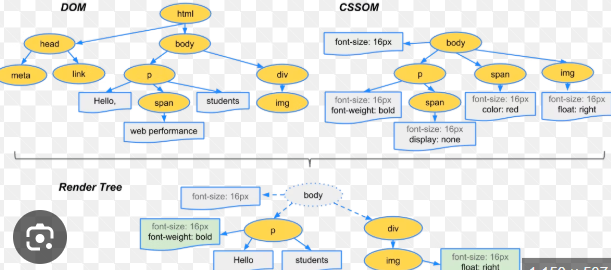
The browser parses CSS into a structured model called the CSSOM (CSS Object Model), which it later combines with the DOM to render the page.
Let’s go step by step.
1. What is CSS parsing?
CSS parsing is the process of:
Reading raw CSS text
Validating syntax
Understanding selectors, properties, and values
Converting everything into a tree structure
Input:
body {
  margin: 0;
  background: white;
}
h1 {
  color: blue;
}
Output:
A structured, machine-readable representation.
2. How CSS reaches the parser
CSS can come from:
External stylesheets (
<link rel="stylesheet">)<style>blocksInline styles (
style="")User agent styles (browser defaults)
All of these are parsed and merged.
3. Tokenization (breaking CSS into pieces)
The browser first tokenizes CSS:
h1 { color: blue; }
Becomes tokens like:
Selector token:
h1Block start
{Property:
colorValue:
blueBlock end
}
Invalid tokens are:
Ignored
Or replaced with safe defaults
➡️ CSS is fault-tolerant by design.
4. Building the CSSOM tree
After tokenization:
Rules are grouped into style rules
Rules are organized into a tree-like structure
Each node represents:
Selectors
Declarations
Relationships (inheritance)
This structure is the CSSOM.
Example structure (conceptual)
CSSOM
 ├── body
 │    ├── margin: 0
 │    └── background: white
 └── h1
      └── color: blue
5. Why CSSOM is a tree
Because CSS supports:
Inheritance
Cascading
Media queries
Specificity
Source order
A flat list would be inefficient.
6. Handling the cascade
When multiple rules apply, the browser resolves conflicts using:
Importance
!important
Specificity
- inline > id > class > element
Source order
- later rules win
This happens during style computation, using the CSSOM.
7. Media queries during parsing
Media queries are parsed immediately:
@media (max-width: 600px) {
  body { background: gray; }
}
Browser checks current viewport
Applies or ignores rules
Updates dynamically on resize
8. CSSOM + DOM → Render Tree
The browser cannot render until:
DOM is ready
CSSOM is ready
Why?
- Layout depends on final styles
The browser merges:
DOM nodes (structure)
CSSOM rules (styles)
Into:
➡️ Render Tree (only visible elements, fully styled)
9. Why CSS blocks rendering
While CSS is loading:
Browser delays painting
Prevents “flash of unstyled content” (FOUC)
So CSS is render-blocking, not network-blocking.
10. Performance implications
Bad CSS can slow pages because:
Complex selectors increase matching cost
Large stylesheets delay first paint
Frequent style changes trigger reflow
Optimizations:
Minify CSS
Avoid deep selectors
Use
defer-like strategies (critical CSS)How DOM and CSSOM come together
The Document Object Model (DOM) and the CSS Object Model (CSSOM) are merged by the browser to form a render tree. This render tree is a visual representation of the page that contains only the visible elements and their computed styles, which the browser then uses to perform layout and painting.
The Process of Combination
The merging of the DOM and CSSOM trees is a crucial step in the browser's critical rendering path. The process generally follows these steps:
DOM Construction: The browser parses the HTML markup and builds the DOM, a tree structure representing the content and structural relationships of the elements.
CSSOM Construction: Concurrently, the browser processes all CSS sources (external stylesheets, inline styles, and embedded styles) and builds the CSSOM, a separate tree structure that captures the style information and the cascade rules.
Render Tree Creation: Once both the DOM and the CSSOM are fully constructed, the browser combines them:
It starts at the root of the DOM tree and traverses all visible nodes.
Elements that are not rendered (like
<head>,<meta>, orscripttags) or explicitly hidden withdisplay: noneCSS property are omitted from the render tree. (Elements withvisibility: hiddenare included, as they still occupy space in the layout).For each visible node, the browser finds the corresponding style rules from the CSSOM and applies them, calculating the final visual properties for that element based on the cascade and specificity rules.
The result is the render tree, a tree of "render objects" (or "boxes") that contains the content and the final, computed styles for all visible elements on the page.
Post-Combination Steps
After the render tree is built, the browser proceeds with the final stages of rendering:
Layout (Reflow): The browser calculates the exact position and size of each object in the render tree within the viewport, determining its geometry and placement in absolute pixels.
Paint: The visual parts of the elements (text, colors, borders, shadows, etc.) are drawn onto the screen.
Understanding how the DOM and CSSOM come together is key to optimizing web performance, as it highlights why CSS is considered a "render-blocking" resource; the page cannot be rendered until the CSSOM is complete. Developers can use the Chrome DevTools Performance panel to inspect the costs associated with these steps.
Layout (reflow), painting, and display
Layout (Reflow), Painting, and Display
(How a browser turns HTML + CSS into pixels)
After the browser has the DOM and CSSOM, it begins the visual pipeline. This pipeline has three major stages: layout (reflow), painting, and display (compositing).
Let’s walk through each one clearly.
1. Layout (Reflow)
Layout answers one core question:
Where is everything, and how big is it?
What happens in layout
For every visible element, the browser calculates:
Width and height
Position (x, y coordinates)
Margins, padding, borders
Font sizes and line breaks
How elements affect each other (block, inline, flex, grid)
Why it’s called “reflow”
Changing one element can force recalculation of others.
Example triggers:
Changing
width,height,margin,paddingChanging font size
Inserting/removing DOM elements
Resizing the window
Layout often starts at the changed element and propagates outward.
2. Painting
Painting answers:
What do the pixels look like?
What painting does
The browser draws:
Text
Colors
Borders
Shadows
Images
Gradients
Each element becomes drawing commands.
Important point
Painting does not decide layout.
It only fills pixels based on layout results.
3. Display / Compositing
Compositing answers:
How do we efficiently put everything on screen?
How compositing works
Page is split into layers
Layers are often sent to the GPU
Layers are combined into the final image
Only changed layers are re-composited
Common layer creators:
position: fixedtransformopacitywill-change
This is why animations using transform are smoother.
4. The full rendering pipeline
    DOM + CSSOM
          ↓
    Style calculation
          ↓
    Layout (Reflow)
          ↓
    Paint
          ↓
    Composite
          ↓
    Display (screen)
5. Reflow vs Repaint vs Composite
| Change type | Layout | Paint | Composite |
| Change text | ✅ | ✅ | ✅ |
| Change width | ✅ | ✅ | ✅ |
| Change color | ❌ | ✅ | ✅ |
| Change transform | ❌ | ❌ | ✅ |
6. Why layout is expensive
Layout:
Is CPU-heavy
Can affect many elements
Blocks rendering
That’s why browsers try to:
Batch changes
Defer recalculations
Use heuristics to limit scope
7. Performance best practices
To keep pages fast:
Avoid frequent layout-triggering properties
Animate
transformandopacityMinimize DOM changes
Use
requestAnimationFrameAvoid layout thrashing (read → write → read styles)
8. Real-world example
    element.style.width = "200px";   // layout + paint
    element.style.color = "red";    // paint only
    element.style.transform = "translateX(50px)"; // composite only
Very basic idea of parsing
Parsing is the process of taking a raw string of characters (like a math formula) and breaking it down into a structured format—usually a tree—that a computer can understand, evaluate, and compute.
Think of it as transforming a sentence into a diagram that shows which words are verbs, nouns, and subjects.
The Basic Example: 5 + 3 * 2
Without parsing, a computer just sees a string: "5+3*2".
With parsing, the computer understands precedence (multiplication happens before addition).
Step 1: Lexical Analysis (Tokenization)
The parser first splits the string into meaningful chunks called tokens.
- Tokens:
[5],[+],[3],[* ],[2]
Step 2: Parsing (Building the Tree)
The parser arranges these tokens into an Abstract Syntax Tree (AST). The rule is that operations with higher precedence (like *) go deeper in the tree, meaning they are evaluated first.
text
        +
       / \
      5   *
         / \
        3   2
Step 3: Evaluation
The computer evaluates the tree from the bottom up:
Bottom Node:
3 * 2= 6Top Node:
5 + 6= 11
Why do we parse?
Operator Precedence: It correctly handles
5 + 3 * 2as 11, not 16.Parentheses Handling: It understands that
(5 + 3) * 2is 16.Error Detection: It can tell if you wrote
5 + * 3(invalid syntax).
Simple Parsing Concept: Shunting-Yard
A common way to parse basic math is the Shunting-Yard algorithm, which uses a stack to:
Shift: Move numbers directly to the output.
Reduce: When a lower-precedence operator (like
+) appears, it forces higher-precedence operators (like*) already in the stack to be calculated first.
In short: Parsing turns raw text into a structured, executable tree.